
An HTML snippet is a small piece of web code you paste into CompleteVantage. It's handy for embed codes from other services, or a quick notice styled your way. In this article you'll add one.
You'll need: the editor, admin or owner role.
Add a snippet
- Go to Media and select Add web page or video.
- At the top, select HTML snippet. The dialog's title changes to Add an HTML snippet.
- In Name, type a name, for example "Wi-Fi details".
- In HTML, paste or type your code.
- Select Add to media.
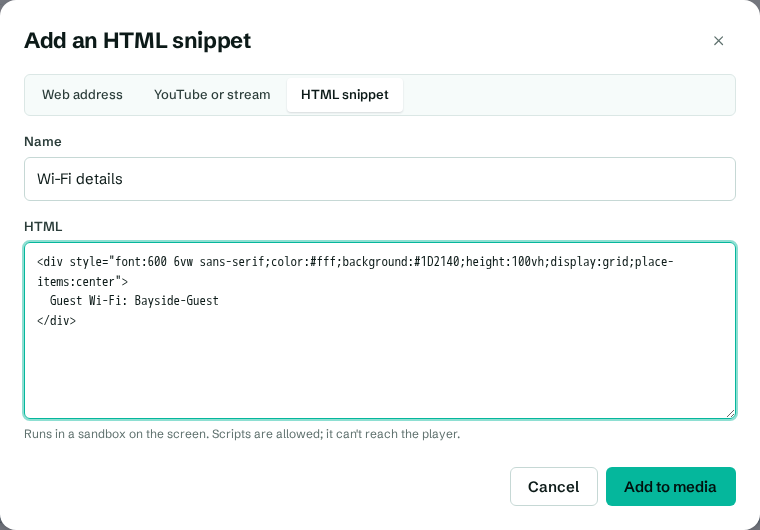
Here's a simple example you can paste and adapt:
<style>
  body { margin: 0; height: 100vh; display: grid; place-items: center;
         background: #0E1128; color: #fff; font: 700 6vw system-ui, sans-serif; }
  small { display: block; font-size: 3vw; font-weight: 400; opacity: .8; }
</style>
<div>Guest Wi-Fi: Bayside-Guest<small>Password: at reception</small></div>
What snippets can and can't do
- Scripts are allowed, so embed codes and small widgets work.
- The snippet runs in a sandbox. It can't reach the player or the TV box, and it can't open pop-ups.
- It fills whatever space it's given: the whole screen, or a zone in a layout. Use sizes in
vwandvh(percent of the space) so it scales. - Anything the snippet loads from the internet needs the screen to be online.
Change a snippet
Select it in the media library, edit the HTML and select Save changes. Screens update within a minute.
Troubleshooting
- Nothing shows. Check the snippet in a normal web page first. Content that needs to be in a top-level window (for example some sign-in widgets) won't work in the sandbox.
- It's tiny on the TV. Use
vw/vhunits or percentages instead of pixel sizes.