
You can put a PowerPoint deck or a PDF straight on a screen. CompleteVantage turns each slide or page into a picture and flips through them. In this article you'll upload one and set the timing.
You'll need: the editor, admin or owner role.
Upload the file
- Go to Media and select Upload files.
- Choose your .pptx, .ppt, .odp or .pdf file.
- Wait for the card to finish Converting slides (presentations) or Rendering pages (PDFs). This takes up to a minute for a large file.
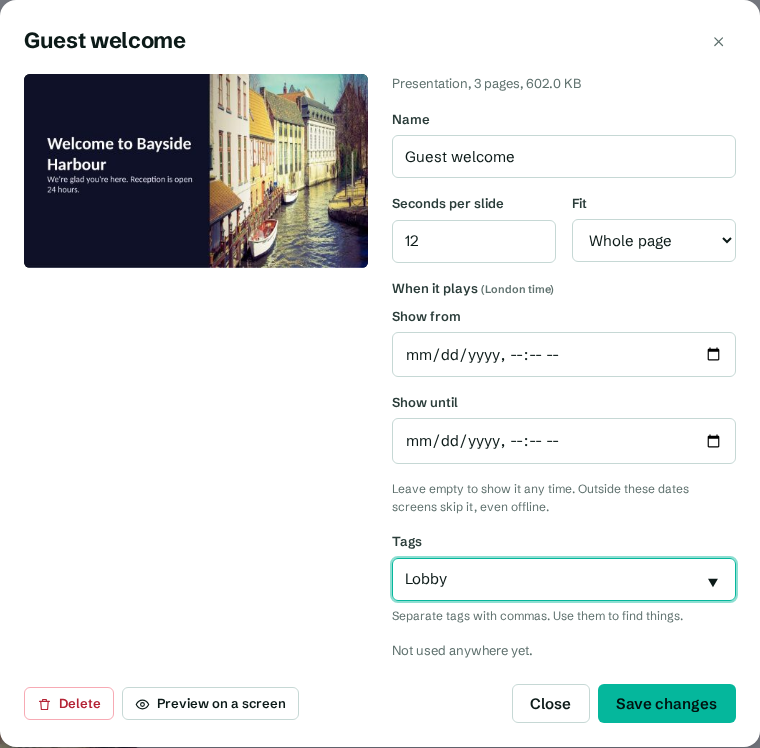
When it's done, the card shows the first page and the number of pages, for example "Presentation, 3 pages".
Set how long each page shows
- Select the file in the library, for example Guest welcome.
- In Seconds per slide (or Seconds per page for a PDF), enter a number between 2 and 600. The default is 10.
- In Fit, choose:
- Whole page to show every page in full, with bars if the shape doesn't match the screen.
- Fill to fill the screen, cropping the edges if needed.
- Select Save changes.
The deck loops: after the last page, it starts again from the first.
What changes during conversion
Slides become still pictures. That means:
- Animations and slide transitions don't play. Each slide shows as it looks once all its animations have finished.
- Videos and audio inside the deck don't play. Upload those videos separately and add them to a playlist.
- Links can't be clicked (screens aren't touch screens).
- Fonts that aren't standard may be swapped for a similar font. If text looks different, save the deck as a PDF from PowerPoint and upload the PDF instead. A PDF keeps your fonts exactly.
Update a presentation
To change the slides, edit the file in PowerPoint and upload it again. Then swap the old item for the new one where it's used, and delete the old one. See Delete media and find where it's used.
Troubleshooting
- The card says "Couldn't process". Select it to read the reason, then select Try again. If it still fails, open the file, save a fresh copy (or export it as PDF) and upload that.
- Pages look blurry. Pages are drawn up to 1920 pixels wide. Very small text in a dense document won't be readable from a distance; make a simpler version for the screen.
- A page is cut off. Change Fit to Whole page.