
Many teams use screens for live dashboards: sales figures, service status, queue lengths or occupancy. In this article you'll add a web page, make it refresh itself and size it for the room.
You'll need: the editor, admin or owner role, and the page's full address (it starts with https://).
Add a web page
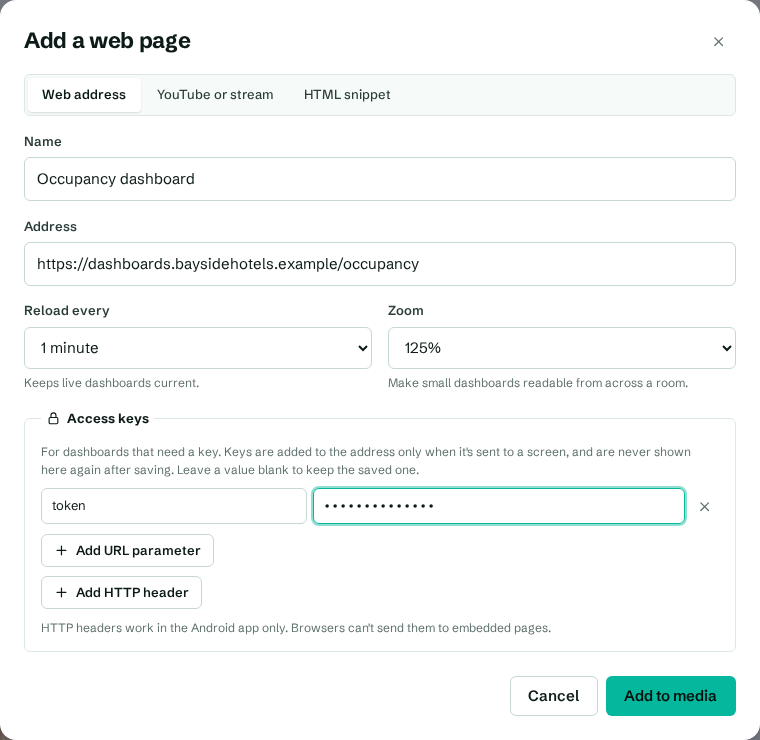
- Go to Media and select Add web page or video.
- Make sure Web address is selected at the top.
- In Name, type something people will recognise, for example "Occupancy dashboard".
- In Address, paste the page's full address, for example
https://dashboards.example.com/occupancy. - In Reload every, choose how often the screen reloads the page: Never, 1 minute, 5 minutes (the default), 15 minutes or 1 hour.
- In Zoom, choose a size from 50% to 200%. Use a higher zoom to make a small dashboard readable from across a room, or a lower one to fit more on screen.
- If the dashboard needs a key or token, add it under Access keys. See Use access keys for private dashboards.
- Select Add to media.
The page now appears in your library with a globe icon, and you can put it on a screen, in a playlist or in a layout zone.
How screens show web pages
- In the Android app, web pages are shown in a native browser view laid over the player. This means sites that refuse to be embedded in other pages (a common security setting) still show, and the app can send HTTP headers for sign-in.
- In a web browser player, the page is embedded in the player. Some sites block this. If a page shows blank or an error in a browser player but works in the Android app, that's why.
- Web pages always load live, so the screen needs internet access (or access to your network, for internal dashboards). They aren't stored for offline use like pictures and videos.
Choose a reload interval
- Pick Never for pages that update themselves, such as most modern dashboards and status pages.
- Pick 1 minute or 5 minutes for pages that only show fresh data when reloaded.
- Avoid very frequent reloads on slow pages: the screen may show a loading page for part of each minute.
In a playlist, you can set a different reload interval for each item. See Show dashboards in a playlist.
Change a web page later
Select it in the media library to change the Address, Reload every, Zoom or access keys, then select Save changes. Screens pick up the change within a minute.
Troubleshooting
- The screen shows a sign-in page. Screens can't type a password. Use a URL key or header instead (access keys), or ask the dashboard's owner for a public, read-only link. Dashboards that only allow interactive sign-in (for example some Power BI reports) won't work this way yet.
- The page is blank in a browser player. The site blocks embedding. Use the Android app for that screen, or check the site's settings for an "allow embedding" option.
- Times on the dashboard are wrong. The dashboard uses the TV box's own clock. See Why a screen shows the wrong time.
- Text is too small. Raise Zoom, for example to 150%.