
A playlist plays its items one after another, then starts again. It's the easiest way to rotate a welcome message, a menu and a video on one screen. In this article you'll create one and put it on a screen.
You'll need: the editor, admin or owner role, and some items in your media library.
Create the playlist
- In the menu, select Playlists.
- Select New playlist.
- In Name, type a name, for example "Lobby loop".
- Select Create playlist. The playlist editor opens.
Add items
- Select Add media or layout.
- In the picker, find the item. Use the search box, or the Media and Layouts chips to narrow the list.
- Select the item. It's added to the end of the list.
- Repeat for each item you want.
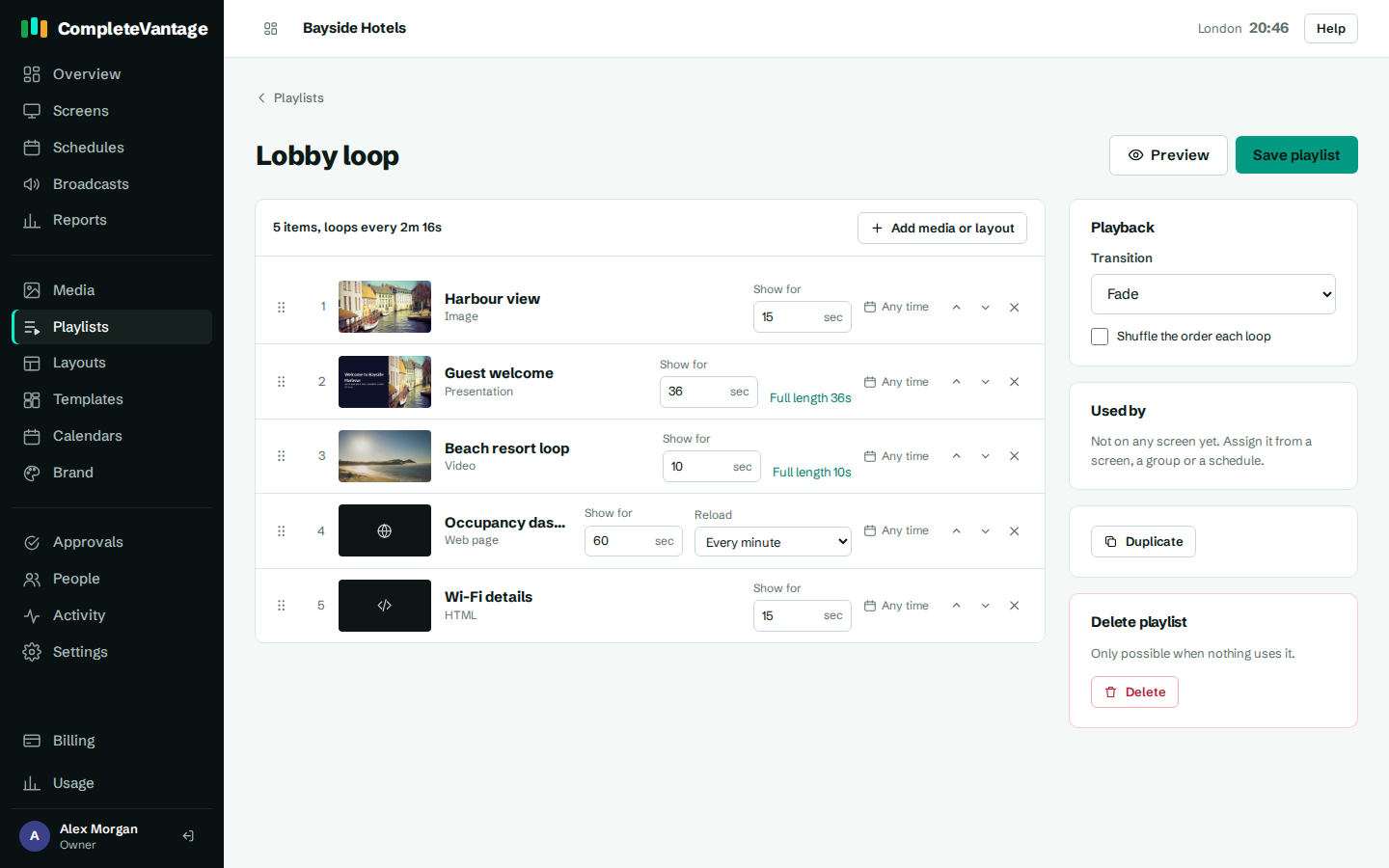
Each new item shows for 15 seconds (web pages for 60 seconds). You can change that on each row. See Order items and set durations.
Save and preview
- Select Save playlist (or press Ctrl+S, or Cmd+S on a Mac). You'll see "Playlist saved. Screens update within a minute."
- Select Preview to watch the playlist in a new tab exactly as a screen would play it. If you have unsaved changes, Preview saves them first.
The line above the list shows how many items there are and how long one loop takes, for example "4 items, loops every 1:15".
Put it on a screen
A new playlist isn't on any screen yet. The Used by panel says "Not on any screen yet. Assign it from a screen, a group or a schedule." You can:
- Show it on one screen: open the screen, and under What plays here select Choose. See Choose what plays on a screen.
- Show it on every screen in a group: edit the group's Default content. See Group your screens.
- Show it at set times: create a schedule.
- Show it in part of the screen: pick it in a layout zone. See Show media and playlists in a zone.
Once it's used, Used by lists where, for example Screen "Reception".
Find your playlists
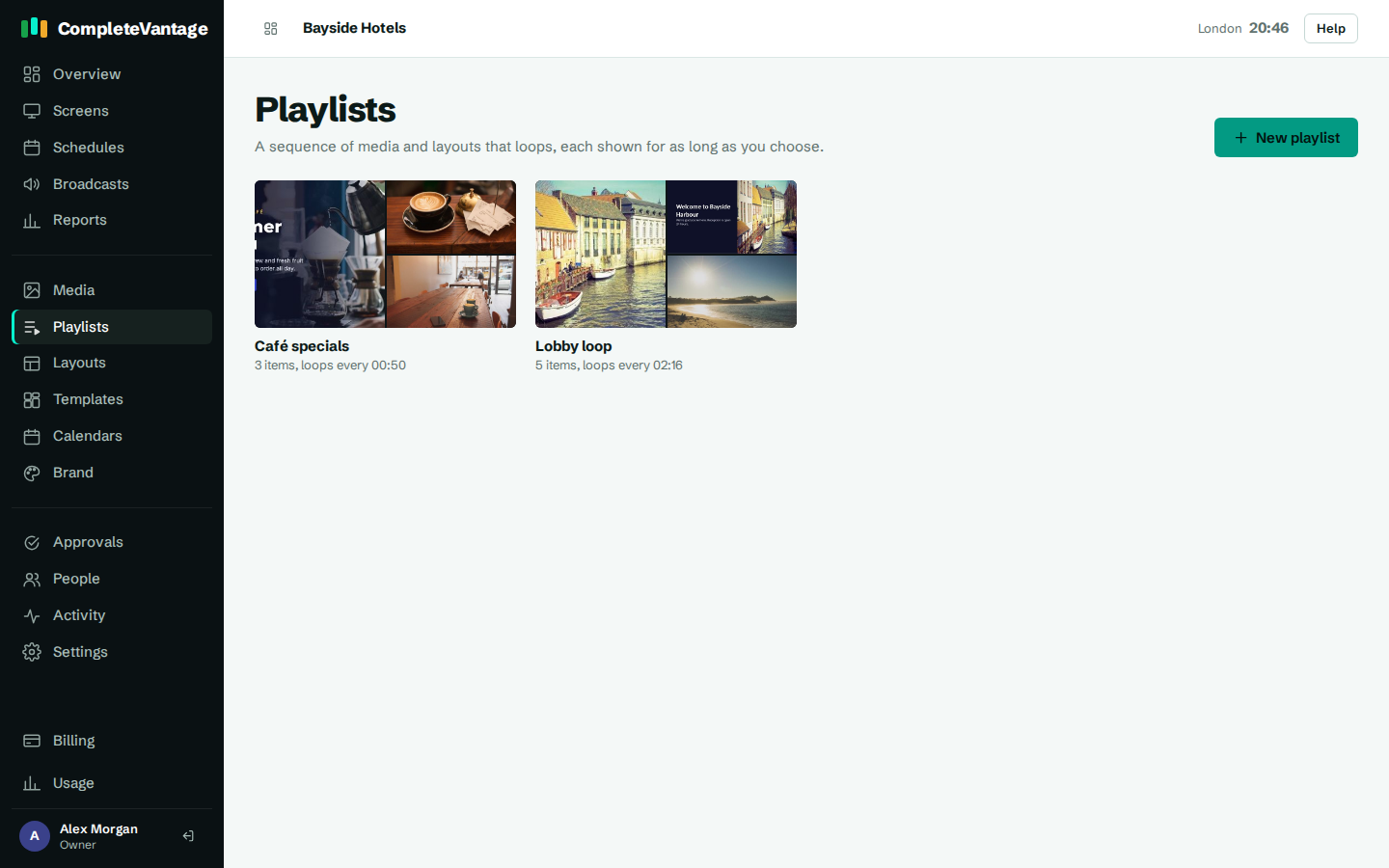
Playlists lists every playlist with a mosaic of its first pictures, how many items it has and how long one loop takes. Select one to open it.
Duplicate a playlist
Select Duplicate on the right of the editor. CompleteVantage makes a copy and opens it: "Playlist copied. You're editing the copy." Rename it at the top and change what you need.
Delete a playlist
- Open the playlist.
- Under Delete playlist, select Delete, then confirm.
You can only delete a playlist when nothing uses it. If it's still in use, you'll see which screens, groups, schedules or layouts use it. Change those first.