
A schedule shows something different at set times. For example, a breakfast menu on the café screen on weekday mornings, or an evening playlist in the lobby. Outside those times, the screen goes back to its normal content.
In this article you'll create a schedule and check it on the week view.
You need: the editor, admin or owner role. Viewers can see schedules but can't change them.
Before you start
Make sure the content you want to schedule already exists. It can be a media item, a playlist or a layout. See Upload files, Create a playlist or Use a template.
Create the schedule
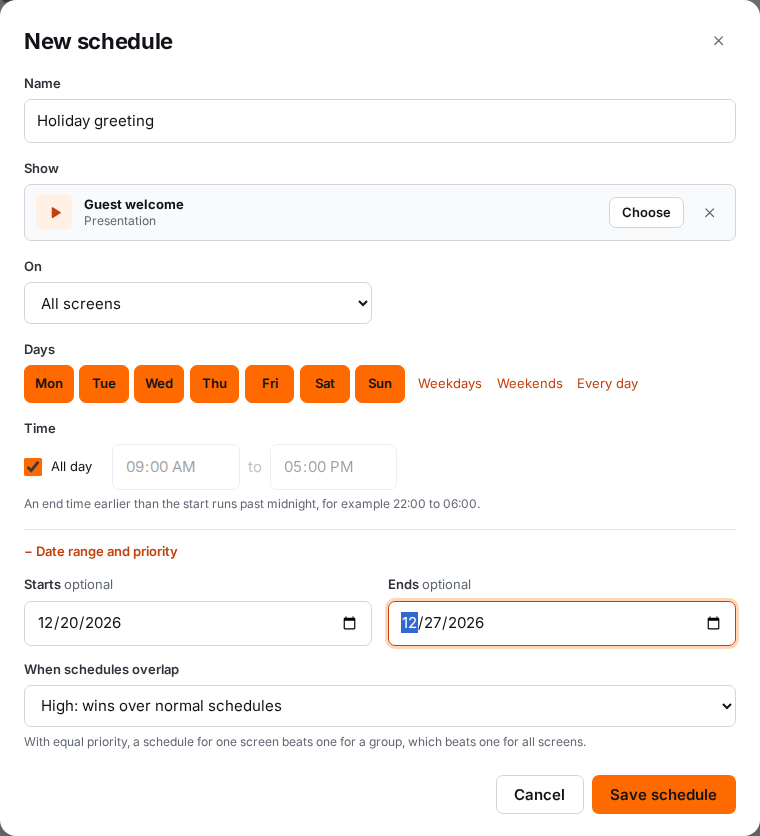
- In the menu, select Schedules.
- Select New schedule.
- In Name, type a name people will recognise, for example
Breakfast menu. - Under Show, select Choose, then pick the media, playlist or layout to show.
- Under On, choose where it plays:
- All screens
- A group, then pick the group
- One screen, then pick the screen
- Under Days, tick the days. You can also select Weekdays, Weekends or Every day to tick them in one go.
- Under Time, set the start and end time, for example
06:30to10:30. Or tick All day. - Select Save schedule.
The schedule appears on the week view and in the list below it. Screens pick up the change within a minute.
Schedules that run past midnight
Set an end time earlier than the start time and the schedule runs overnight. For example, 18:00 to 02:00 on Friday starts on Friday evening and ends at 2 am on Saturday.
The part after midnight belongs to the day it started. So a Friday-only schedule from 18:00 to 02:00 doesn't play from midnight to 2 am on Friday morning. It plays from midnight to 2 am on Saturday morning, following on from Friday evening.
Read the week view
The week view at the top of the Schedules page shows every active schedule as a coloured block, Monday to Sunday. Today's row is highlighted, and a red line marks the current time in your organization's timezone.
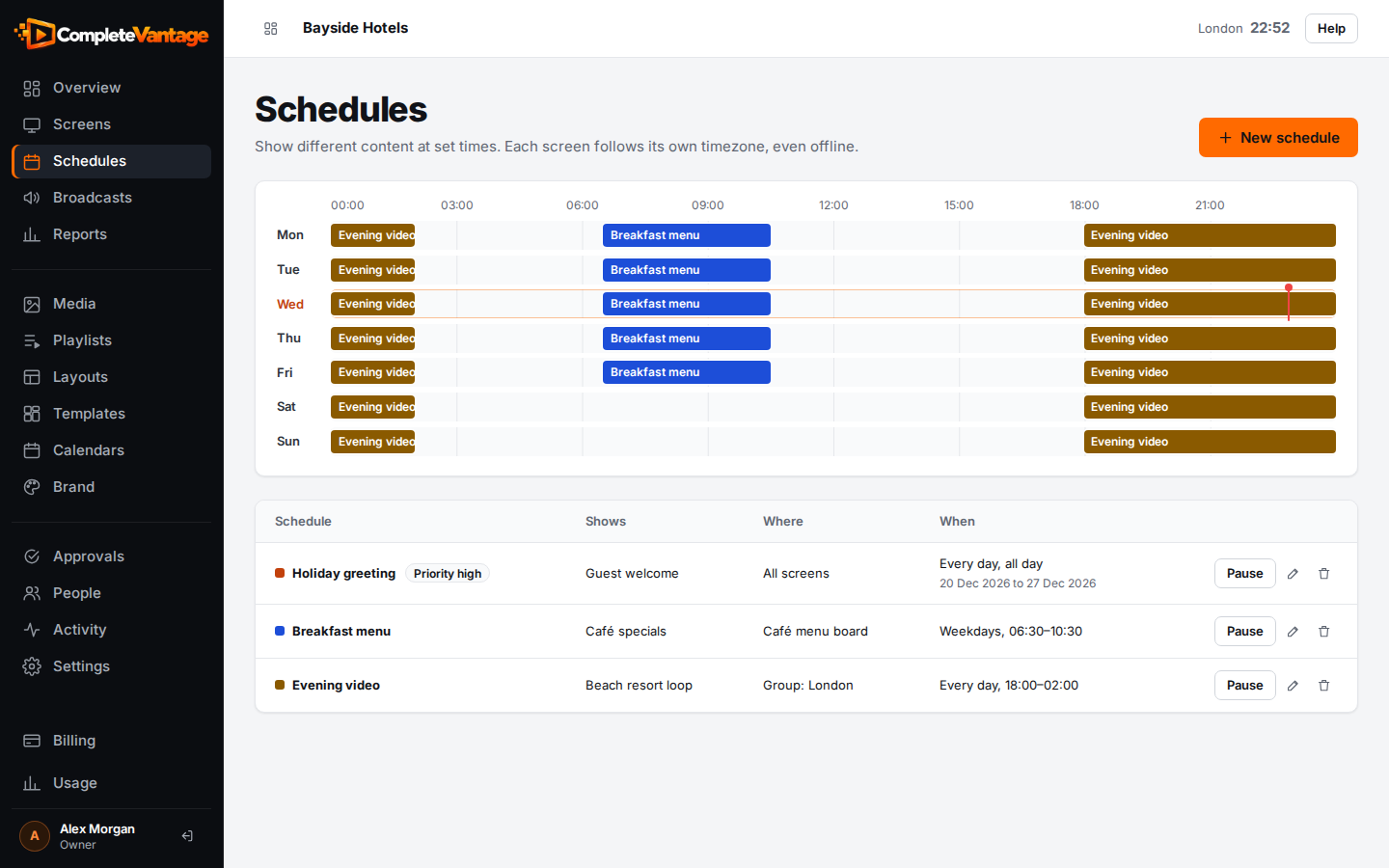
The week view doesn't show schedules that are paused, have ended or are waiting for approval. Screens don't follow those either.
Check it on a screen
Open a screen from Screens. Under What plays here, the screen lists the schedules that take over at set times. Select Preview to see what the screen shows right now.
Troubleshooting
"Choose what to show." You haven't picked content under Show. Select Choose and pick an item.
"Pick at least one day." Tick at least one day under Days.
"Start and end can't be the same time." Change one of the times, or tick All day.
The schedule saved but the screen doesn't switch. Check that:
- the current time on the screen is inside the schedule's hours. The screen uses its own timezone, shown on its page.
- no higher-priority schedule or broadcast applies at the same time. See What plays when.
- the schedule isn't paused or waiting for approval.
- the screen's display isn't off because of its display hours.