
Items in a playlist play from top to bottom, each for as long as you choose. In this article you'll change the order and the timing.
You'll need: the editor, admin or owner role.
Change the order
Open the playlist from Playlists, then either:
- Drag an item by its handle (the dots on the left) and drop it where you want it, or
- use the up and down arrow buttons on the right of the row. These also work with the keyboard.
The number on each row shows its place in the order. To take an item out, select the × on its row.
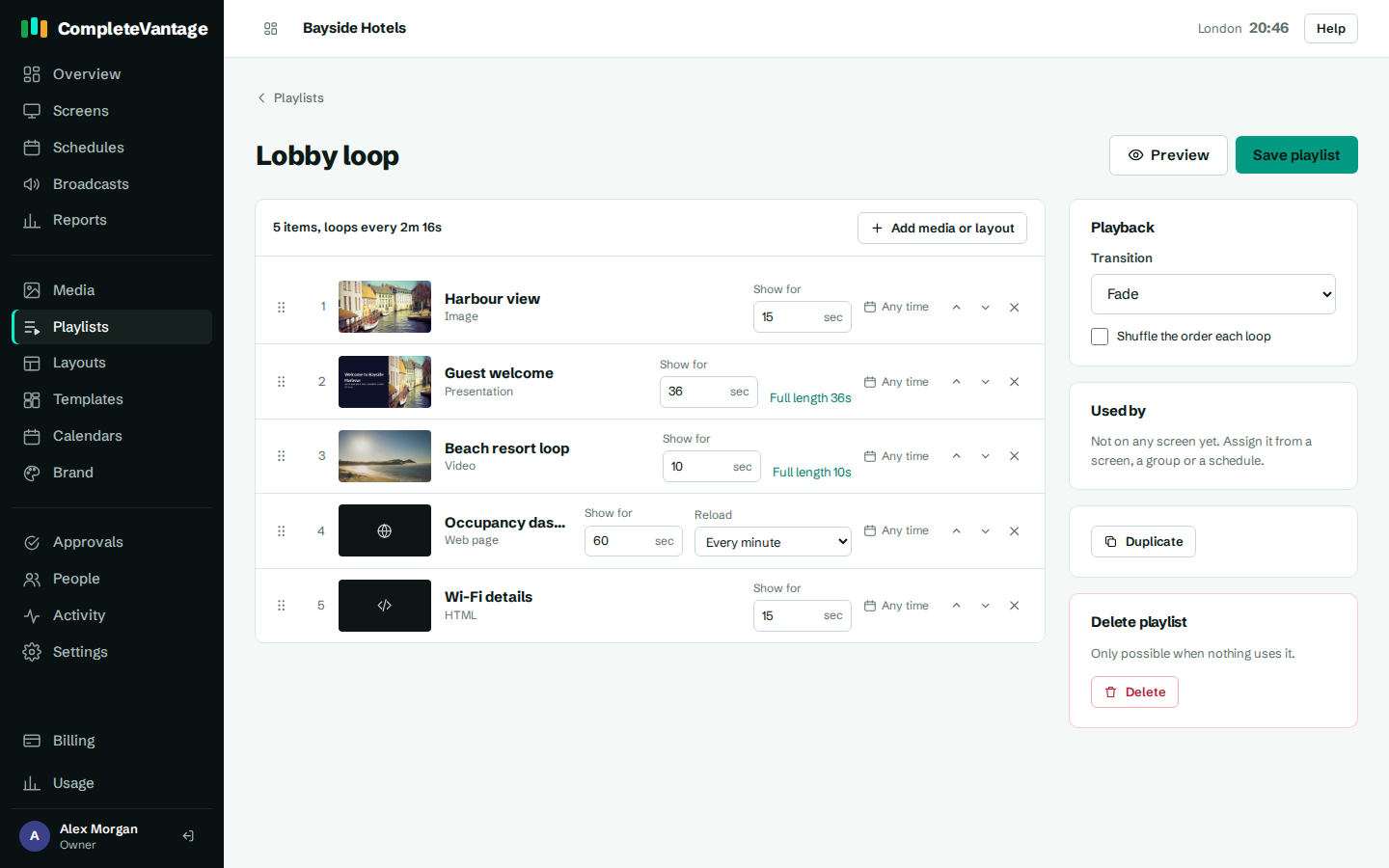
Set how long each item shows
- On the item's row, find Show for.
- Type the number of seconds. The shortest is 3 seconds.
- Select Save playlist.
The total at the top of the list updates as you type, for example "4 items, loops every 2:30".
Play videos and documents in full
Videos, PDFs and presentations have a Full length link next to Show for, for example Full length 0:45. Select it to set the duration to the whole video, or to pages × seconds per page for a document.
What happens if the duration doesn't match:
- Shorter than the video: the playlist moves on before the video ends.
- Longer than the video: the video starts again until the time is up.
- A document: its pages keep turning at their own pace (set on the media item) for as long as the item shows.
How long should items show?
- Short messages and pictures: 8–15 seconds.
- Menus and text-heavy slides: 15–30 seconds.
- Dashboards: 60 seconds or more, so people have time to read them.
Save your changes
Select Save playlist. The button is highlighted while you have unsaved changes, and your browser warns you if you try to leave without saving.