
Zones can overlap. Layers decide which one is on top. Zone style lets you give each zone a coloured panel, rounded corners and some breathing room around its content.
You'll need: the editor role or higher.
Change the order of zones
- Select a zone.
- Under Position and size, choose Bring forward to move it up one layer, or Send backward to move it down one.
To see the order, deselect all zones. Zones, top to bottom lists every zone, with the one on top first. Select a name in the list to select that zone, even if it's hidden behind others.
Zone style
Select a zone and scroll to Zone style.
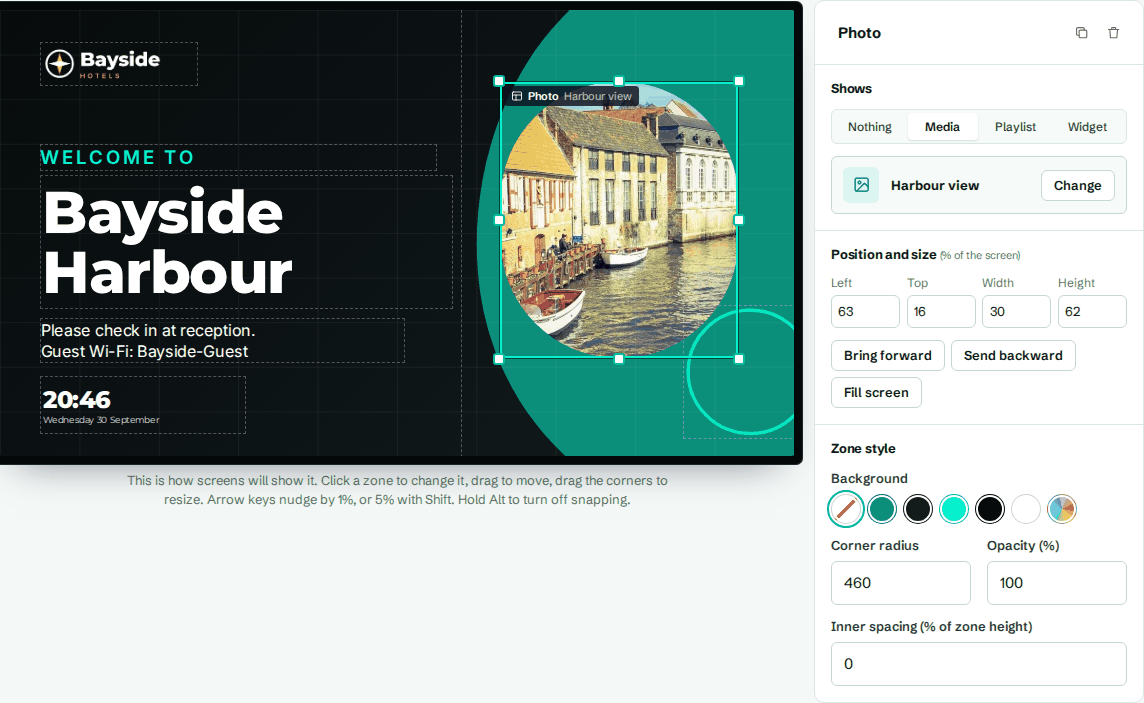
| Setting | What it does |
|---|---|
| Background | A colour behind the zone's content. Choose none, one of your five brand colours, or a custom colour. |
| Corner radius | Rounds the zone's corners. The value is in pixels on a 1080p screen, so 24 gives gently rounded corners on any TV. |
| Opacity (%) | How see-through the whole zone is. 100 is solid. 80 lets a background photo show through slightly. |
| Inner spacing (% of zone height) | Space between the zone's edge and its content. 4 to 8 works well for text on a coloured panel. |
Brand colours versus custom colours
The five round swatches are your brand's Primary, Secondary, Accent, Dark and Light colours. Pick one of these and the zone follows your brand: change the colour under Brand and every screen updates. The last swatch opens a colour picker for a custom colour, which stays fixed.