
A QR code lets people open a link on their phone by pointing their camera at the screen. Use it for feedback forms, booking pages, menus, job listings or Wi-Fi details.
You'll need: the editor role or higher.
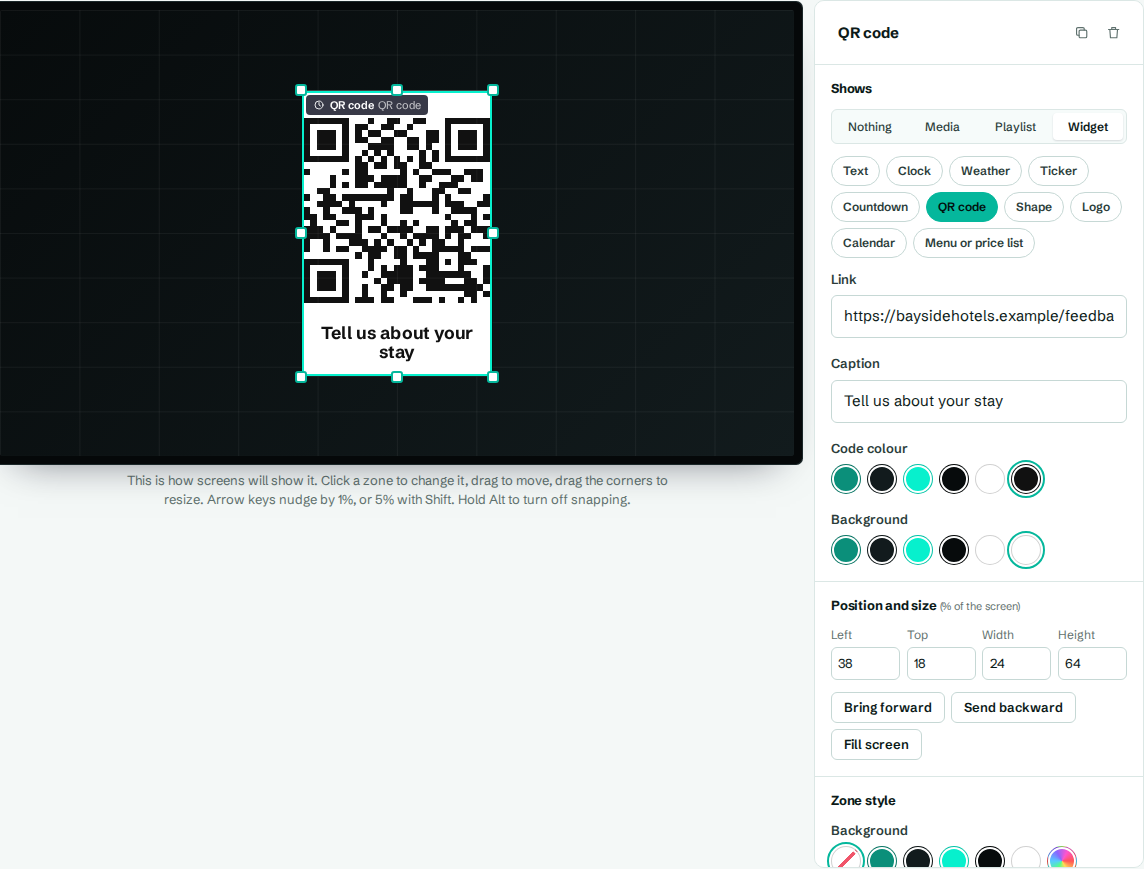
Add a QR code
- In the designer, select a zone. A square-ish zone works best.
- Under Shows, choose Widget, then QR code.
- Type the full address in Link, starting with
https://. - Add a Caption and select Save layout.
The code is made on the screen itself, so it works offline too.
Settings
| Setting | What it does |
|---|---|
| Link | The web address the code opens, for example https://baysidehotels.example/feedback. |
| Caption | Text under the code, like "Scan to book a table". |
| Code colour | Colour of the code's squares. Dark colours scan best. |
| Background | Colour behind the code. Light colours scan best. |
Tips for codes that scan
- Make the zone big enough to scan from where people stand. As a rough guide, the code should be at least 15 cm across on a screen people walk past.
- Shorter links make simpler codes that scan more easily from further away.
- Test it with your own phone on the real screen.
Troubleshooting
"Link too long for a QR code". The address is too long to fit in a code. Use a shorter address or a link shortener.
The zone is empty. Link is blank. Add an address.