
Signing up creates your account and your organization: your company, school or site. The organization holds your screens, content and people. You're its owner, and your free trial starts straight away.
Sign up
- On the CompleteVantage website, select Start free trial, or open the sign-in page and select Start a free trial.
- Fill in the form:
- Your name, as your team will see it.
- Work email. You'll sign in with this address.
- Password. Use at least 10 characters. A few unrelated words make a strong one.
- Organization name, for example
Bayside Hotels. - Timezone. New screens use it until you set their own. It's guessed from your browser, so check it.
- Tick I agree to the terms of service and the privacy policy.
- Select Start free trial.
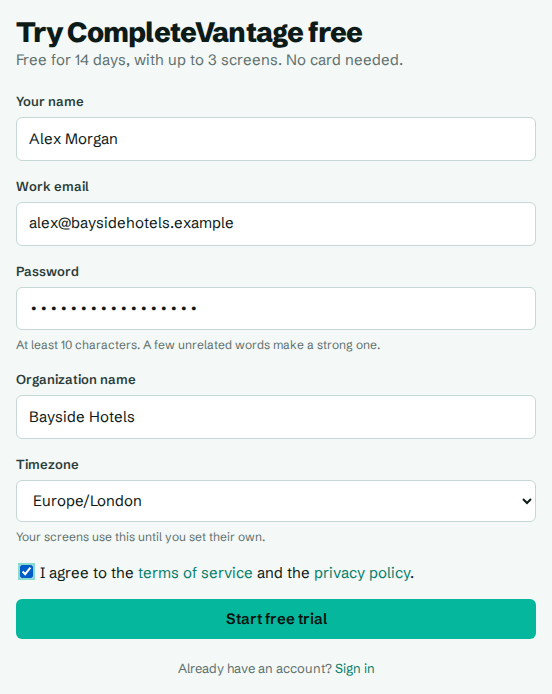
The top of the form tells you how long the trial lasts and how many screens it includes, for example "Free for 14 days, with up to 3 screens. No card needed."
Confirm your email address
After you sign up, you'll see Check your email. We've sent a link to the address you entered.
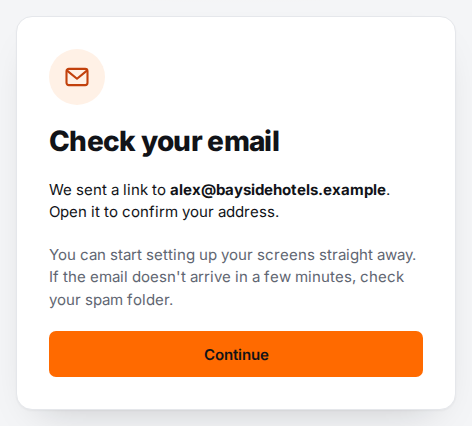
- Select Continue to start setting up straight away. You don't have to wait for the email.
- When the email Confirm your email address arrives, select Confirm email address in it. The link works for 48 hours.
Until you confirm, a banner at the top of each page reminds you. See Confirm your email address.
Tell us what the screens are for
The first time you confirm your address, CompleteVantage asks: What will you use your screens for? Pick the closest match, such as Hotel or hospitality or Office. It only changes which templates we suggest first. You can use every template whatever you pick.
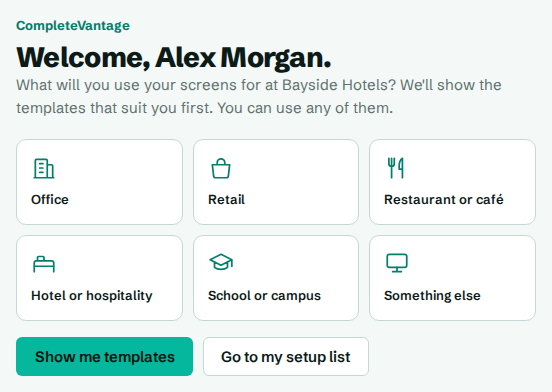
- Show me templates opens the template library.
- Go to my setup list opens Overview with your setup list.
Follow the setup list
Overview shows Get set up, a short list that ticks itself off as you go:
- Add your first screen
- Set your brand
- Create something from a template
- Put it on a screen
- Invite your team
- Set display hours or connect a calendar (optional)
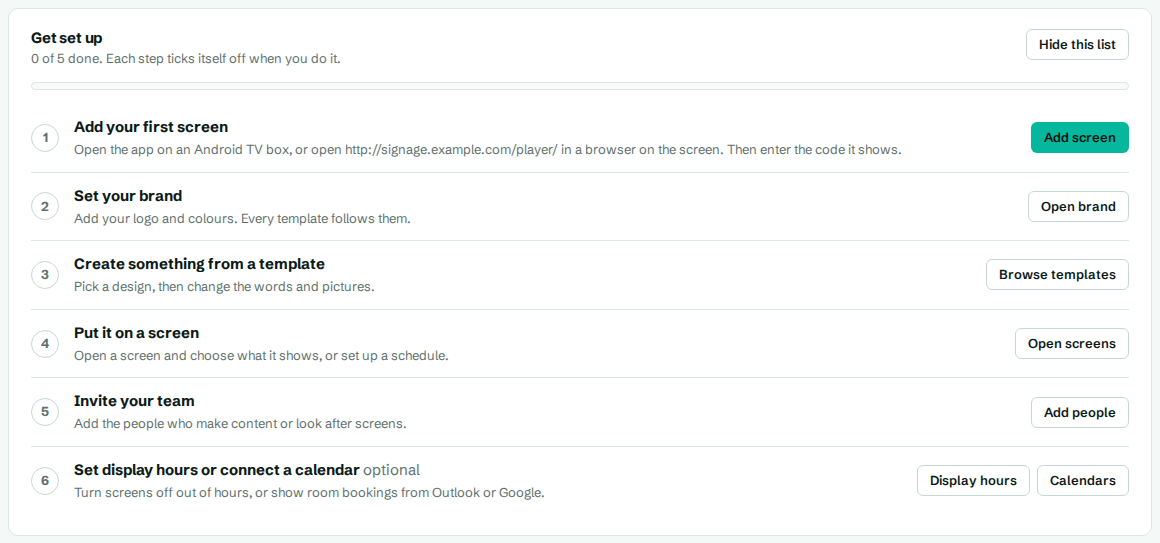
Each step has a button that takes you to the right place. The Setup item in the menu shows how far you've got. When you don't need the list any more, select Hide this list.
During your trial
Everything works during the trial: pair screens, upload content, schedule it and invite your team, up to the trial's limits. Usage in the menu shows what you've used and how many days are left. A banner also counts down the days for admins and owners.
When you're ready, an owner chooses a plan. See Choose a plan.
If you see "Sign-up is by invitation"
Some CompleteVantage services, and servers run by your own company, don't allow sign-up. Accounts are set up for you instead. Ask the person who looks after your screens to add you. They'll give you a temporary password. See Your first sign-in.
Troubleshooting
"Check the highlighted fields and try again." A field needs attention. The message under it says what to change, for example "Use at least 10 characters." or "Agree to the terms to continue."
"That password is too common. Try a few unrelated words together." Choose a password that isn't on lists of common passwords. Don't include the first part of your email address either.
I signed up but already had an account. For your security, the page looks the same either way. If the address already has an account, we email it instead, with a link to sign in or reset the password.
"Too many sign-ups from this network. Wait an hour and try again." Several accounts were created from your network recently. Wait an hour, or ask a colleague who already signed up to add you under People.