
Your profile holds your name, your password and the email address you sign in with. It's the same for every organization you work in.
Before you start: anyone can change their own profile, whatever their role.
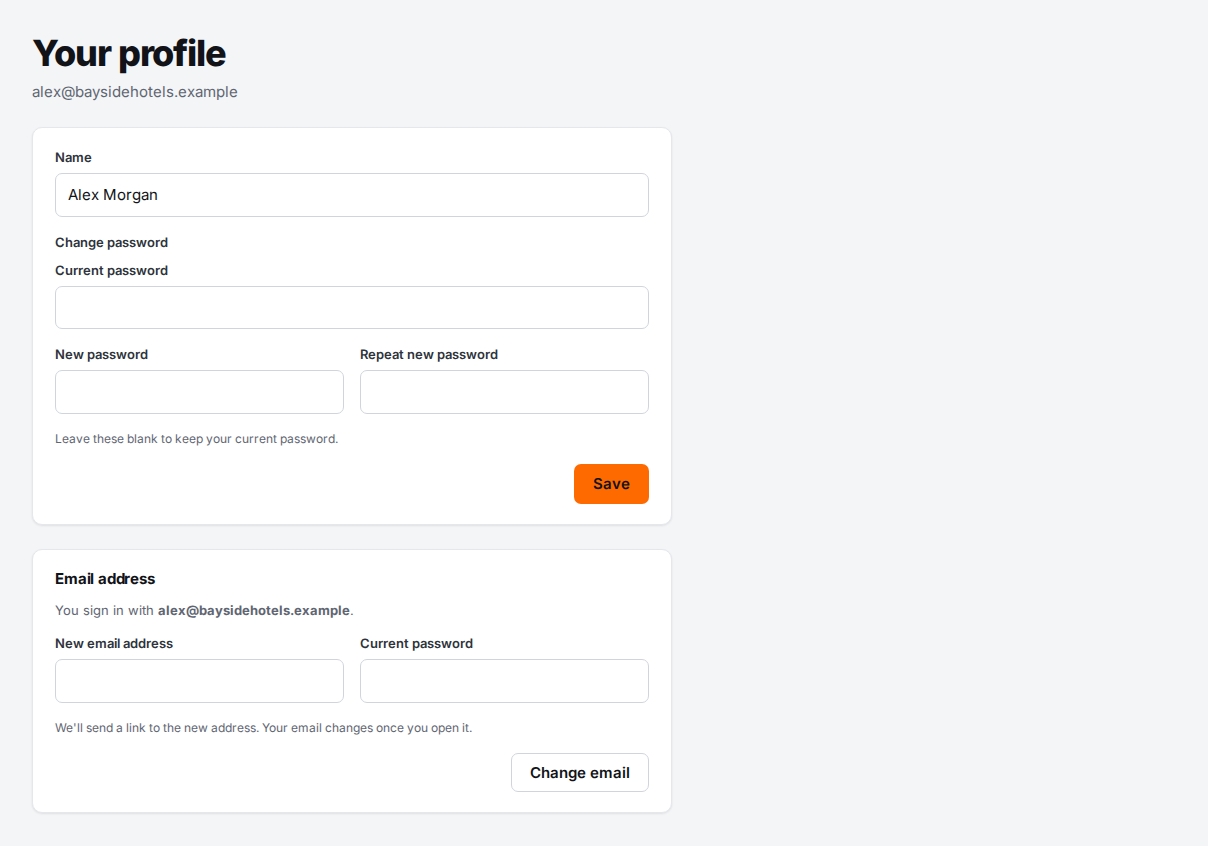
Open your profile
At the bottom of the menu, select your name. Your role in the current organization, such as Owner or Editor, is shown under it.
Change your name
- On Your profile, change Name.
- Select Save.
Your name appears in the activity log and next to changes you send for approval.
Change your password
- On Your profile, under Change password, enter your Current password.
- Enter a New password of at least 10 characters.
- Type it again in Repeat new password.
- Select Save. You'll see "Password changed."
Leave the password boxes empty if you only want to change your name.
Change your email address
- On Your profile, find Email address. It shows the address you sign in with now.
- Enter the New email address.
- Enter your Current password.
- Select Change email.
We send a link to the new address. Your email changes once you open it, and you'll see "Your email address is now" and the new address. Until then you keep signing in with the old one, and the panel says Waiting for you to confirm. From there you can Send the link again or Cancel the change.
For your security, we also email your old address to say a change was asked for.
Sign out
At the bottom of the menu, next to your name, select the Sign out button.
Switch organization
If you work for more than one organization, for example as a reseller or across two companies, a list at the top of every page shows the current organization. Choose another from the list to switch. Your role can be different in each one.
Troubleshooting
"That isn't your current password." Type your current password again. If you've forgotten it, see Forgot your password.
"The two new passwords don't match." Retype both new password boxes.
"That isn't your current password." when changing email. Enter the password you sign in with now, in Current password next to the new address.
"That address can't be used". Another account already uses that address, so your email hasn't changed. Choose a different address.
The confirmation email hasn't arrived. Check the spelling of the new address and your spam folder, then select Send the link again. See Confirm your email address.