
A broadcast takes over screens right away with a message you type. Use it for anything urgent: a fire drill, a lift out of service, a room change. When it ends, screens go back to what they were showing.
You need: the editor, admin or owner role.
Send a message
- In the menu, select Broadcasts.
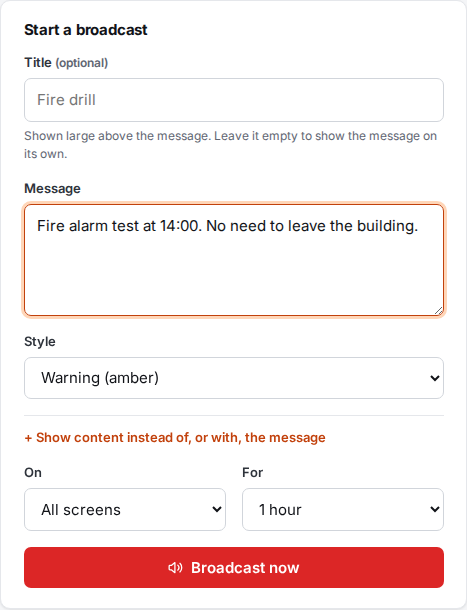
- Under Start a broadcast, type your text in Message. For example:
Fire alarm test at 14:00. No need to leave the building. - Choose a Style:
- Emergency (red): flashes gently to draw attention. For evacuations and real emergencies.
- Warning (amber): for disruptions and tests.
- Announcement (blue): for general news.
- Good news (green): for celebrations and good news.
- Under On, choose All screens, A group or One screen. If you pick a group or a screen, choose which one in the list that appears.
- Under For, choose how long it shows: 15 minutes, 1 hour, 4 hours, 24 hours or Until I end it.
- Select Broadcast now.
Screens switch within about 30 seconds. The broadcast appears under Showing now, and a red banner appears at the top of every admin page until it ends: "A broadcast is showing on screens now."
What people see
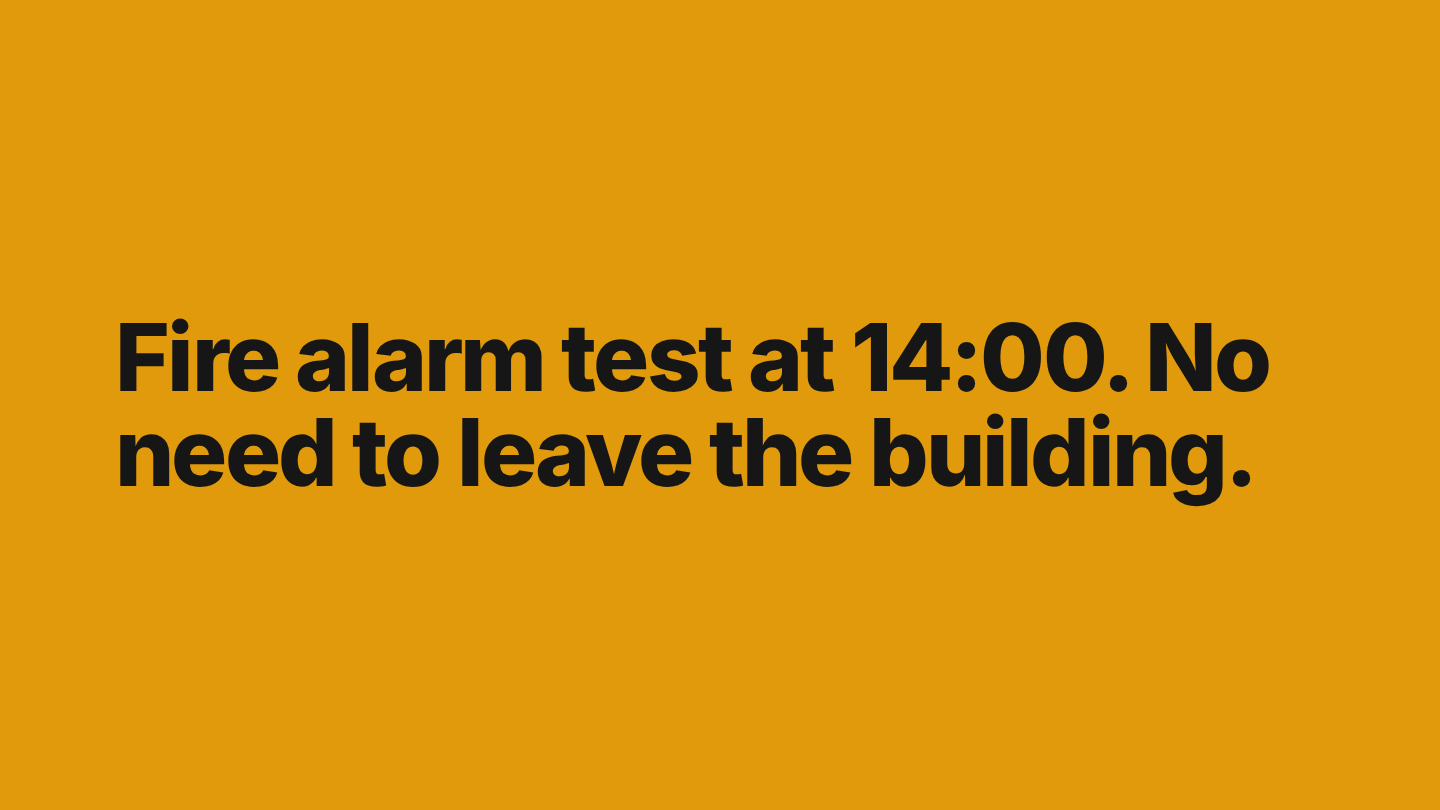
A message on its own fills the whole screen in the colour of the style you chose.
Which screens show it
- A broadcast for a group also shows on screens in groups inside it.
- Broadcasts beat schedules and all other content. See What plays when.
- If two broadcasts are live on the same screen, the newest one shows.
- A screen whose display is off because of its display hours stays off. Broadcasts don't wake it.
- An offline screen shows the broadcast when it reconnects, if it's still live. A broadcast with a set time ends on time even if the screen is offline.
Troubleshooting
"Write a message or choose content to show." Type a message, or choose content under Show content instead of, or with, the message.
"Choose a group." or "Choose a screen." Pick a group or screen from the list next to On.
A screen didn't switch. Check its status on the Screens page. Screens that are offline or have their display off don't show it until they're back. See Screen status.