
Each of your clients is its own organization, with its own screens, content, people and settings. As partner staff, you can open any of them and create new ones.
See your clients
In the menu, select Clients. The list shows each client with its Timezone and number of Screens.
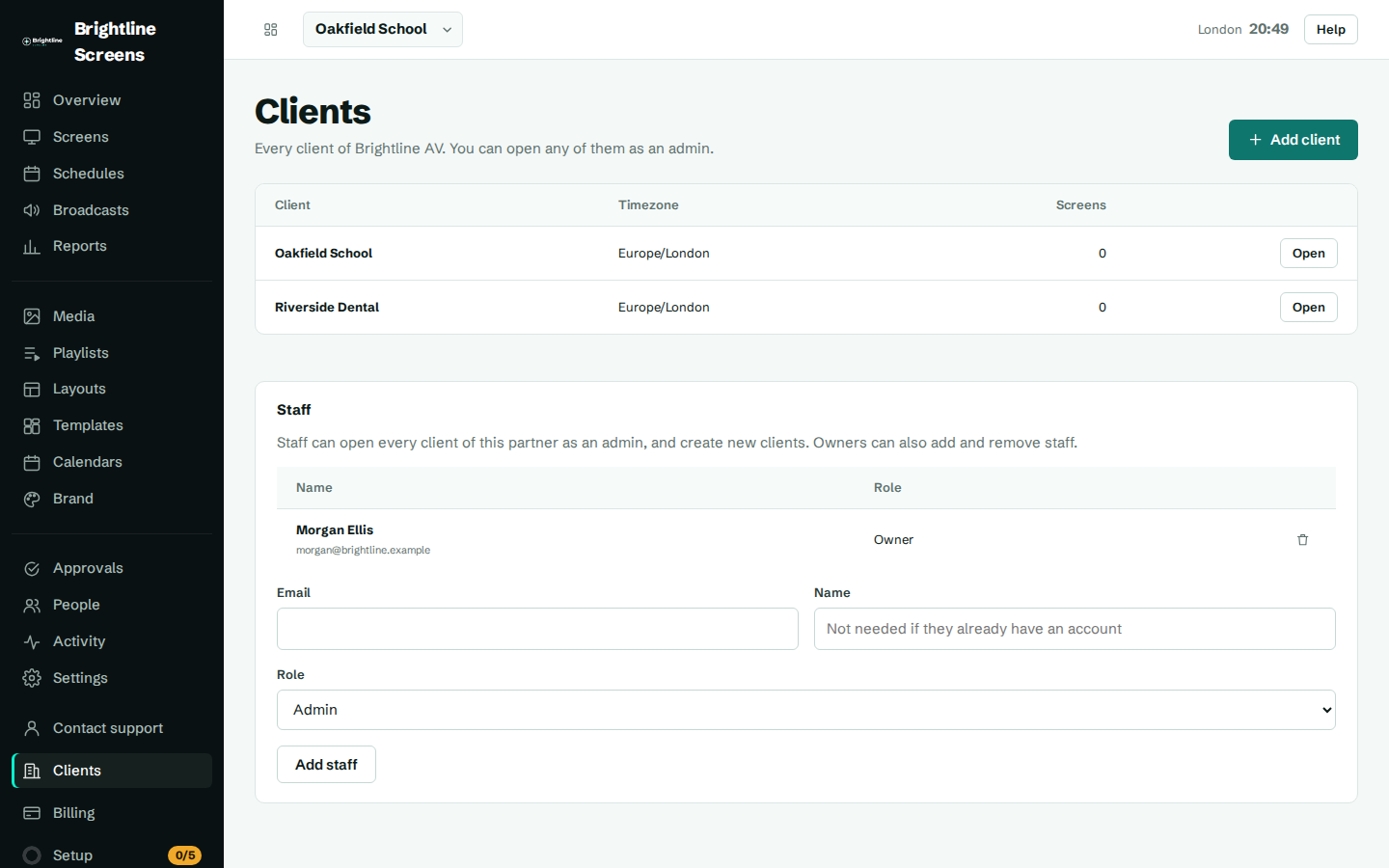
Open a client
- On the Clients page, select Open next to the client.
- You're now working in that client, as an admin. The client's name shows at the top of the page.
To switch to another client, choose it from the list at the top of any page.
Create a client
- On the Clients page, select Add client.
- Enter the Client name, for example "Harbour Café".
- Choose the Default timezone for their screens.
- If you work for more than one partner, choose the Partner.
- Select Create client.
You're taken straight into the new client, and you're its owner. Now you can:
- set up their brand kit, see Set up your brand,
- pair their screens, see Pair a screen,
- add their own people under People, see Add people.
What staff can do
- Open every client of the partner as an admin: pair and remove screens, manage content, people and settings.
- Create new clients, where they become the owner.
- Staff don't need to be added to each client's People list. Access comes from being on the partner's staff, and ends when they're removed from it.
If someone is on your staff and also has a higher role in a client, such as owner, they keep that higher role there.
When a staff member starts or leaves
Staff are managed on your partner page by CompleteVantage. New staff members without an account get a temporary password and choose their own when they first sign in. See Your first sign-in.
When someone leaves, ask us to remove them. They lose staff access to your clients straight away. But whoever creates a client becomes its owner, and that stays. Check People in each client they created or were added to, and remove them there too.